
Make Parts Now for Autodesk® Fusion®: instant quotes in Fusion
A free add-in that prices your parts without leaving your design. Click the parts, choose SLS nylon or an FDM plastic, and see the price, printability checks and ship date in a panel beside the model. When you're ready, order and pay on makepartsnow.com.
Until the listing is live, the add-in is installed by hand. For early access, email [email protected]. It runs on Fusion for Windows; a Mac version is planned.
Install
- 1
Unzip the add-in somewhere you'll keep it, for example
Documents\MakePartsNow. You should end up with aMakePartsNowfolder that holdsMakePartsNow.manifest. - 2
In Fusion, open UTILITIES > ADD-INS > Scripts and Add-Ins (Shift+S).
- 3
Click + and choose Script or add-in from device. Select the unzipped
MakePartsNowfolder. - 4
Turn on its Run switch. Turn on Run on Startup as well if you want it loaded every time Fusion starts.
You can instead unzip it into %APPDATA%\Autodesk\Autodesk Fusion 360\API\AddIns, where Fusion finds it by itself. The folder name still says “Fusion 360”.
Get a quote
- 1
Open your design. On the UTILITIES tab, click the red M Get Instant Quote button in the MAKE PARTS NOW panel. It is also under UTILITIES > ADD-INS. The Make Parts Now palette opens on the right.
- 2
The first time, read what the add-in sends and click Accept and continue. Sending anonymous usage counts is a separate choice, off unless you tick it.
- 3
Click components or bodies in your design to add them, up to 25 parts. Clicking a face adds its whole part. You can also select parts first and click Add selected.
- 4
Choose a material for each part. SLS nylon is PA12 Nylon (Formlabs Nylon 12) in Gray or Black Dyed. FDM plastics are PLA, PETG, ABS, ASA, TPU 95A, PA-CF and PETG-CF, each in its colors. New parts start as PA12 Nylon, Gray. Set the quantity for each part.
- 5
Enter the US ZIP code the parts ship to and click Get instant quote. Each part is exported, uploaded and priced.
- 6
Read your quote: each part's price and line total, its printability checks (units match Fusion, fits the build volume, one solid body, and warnings such as thin walls), shipping, the total before tax, and the ship and arrival dates. Quotes are for our Standard speed.
- 7
To change a quantity, material, color or the ZIP code, click Edit parts, then Get instant quote again. Parts aren't uploaded again.
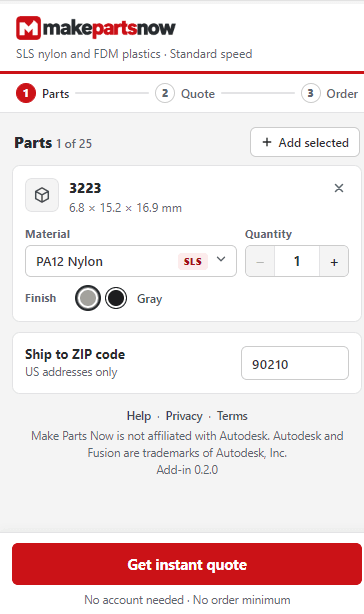
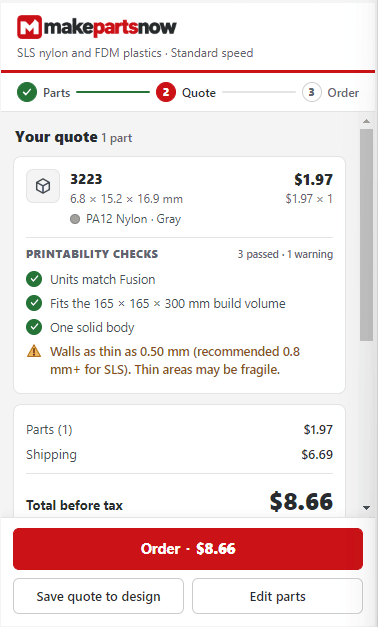
Screenshots from Fusion, quoting one small part. Your prices, dates and printability checks come from your own parts.
Rules for parts
- Each part must be one solid body. Hidden bodies count. Combine the bodies, or move the extra ones into their own components.
- A component with sub-components can't be quoted as one part. Select the sub-components instead.
- If all your geometry is in one body at the top of the design, select that body.
- A part must fit its material's build volume. The add-in names the limit when a part is too large.
- The add-in sends a STEP file for each part. Only if Fusion can't export STEP does it offer to send STL instead, and only when you agree.
- The add-in compares each part's size in Fusion with the size we measure from the file. A small difference is fine; a part that comes out 10 or 25.4 times too large or too small blocks Order until you fix its units.
Order
Click Order. Checkout opens on makepartsnow.com in your browser, and you pay there through Stripe. On your first order, the add-in shows a code with a Copy button: enter the code shown in the add-in at checkout.
- Prices are in US dollars before sales tax. Any tax is added at checkout.
- We ship to US addresses only. Orders of $50 or more ship free by ground.
- You don't need an account, and there is no order minimum.
Save a quote in your design
On the quote, click Save quote to design. Each part stores its price, quantity, material, finish, the date and the quote link, as one step you can undo. Save the design to keep them. Anyone you share the design with can see the price and open the quote link.
Troubleshooting
The Get Instant Quote button doesn't appear
Open Scripts and Add-Ins (Shift+S) and check that the Run switch for MakePartsNow is on. Turn on Run on Startup so it loads every time Fusion starts. The MAKE PARTS NOW panel is on the UTILITIES tab of the Design workspace.
“Units don’t match Fusion”
The size we measured from the uploaded file doesn't match the part in Fusion, often by 10 or 25.4 times. Check the design's units and the part's size, then quote the part again so it is exported again. Order stays blocked until the sizes match.
A part is refused
“… has N solid bodies” or “… has sub-components”: see Rules for parts. “Too large for …”: choose a material with a larger build volume, or split the part. “Fusion couldn't export these parts as STEP”: click Send as STL. The add-in exports it in millimeters, and the units check still runs.
“Quoting is paused”
Quoting from Fusion is paused for a short while. Try again later, or upload your file on makepartsnow.com.
A network error
“Can't reach makepartsnow.com”: check your internet connection, proxy or firewall, then click Try again. “A secure connection could not be made”: check that your computer's date and time are right and that no network filter is intercepting HTTPS.
The quote stops progressing
Click Cancel and try again. If it keeps happening, tell us at [email protected].
Clicking parts adds nothing
Parts are added on the Parts step while no other Fusion command is running. Press Esc to end a command, or select the parts and click Add selected.
The palette closed when I switched workspace
Fusion closes palettes when you switch workspace. Click Get Instant Quote again; your parts and quote are kept.
The add-in asks you to update
Until the App Store listing is live, email [email protected] for the latest version, then replace your MakePartsNow folder with the new one.
Uninstall
Open Scripts and Add-Ins (Shift+S), select MakePartsNow, turn its Run switch off, and remove it from the list. Or delete its MakePartsNow folder. The panel and button go away when the add-in stops.
Its settings (whether you accepted the notice, your usage-count choice and the last ZIP code) are in %APPDATA%\MakePartsNow. Delete that folder to remove them.
Your files and privacy
- Nothing about your design is sent until you have accepted the one-time notice and clicked Get instant quote. Clicking parts sends nothing. Opening the palette fetches the current materials, colors and limits from makepartsnow.com, with no part data.
- For a quote, the add-in sends one STEP file per part, named after the part (or STL, if you agreed), each part's quantity, material and finish or color, the ZIP code, and the add-in's name and version. It sends nothing else from your design, and nothing about your Autodesk account. It talks only to makepartsnow.com.
- Uploaded files are stored encrypted and deleted automatically under the retention periods in our privacy policy. Files on an order are kept with the order. To delete them sooner, click Delete my uploaded files in the palette, or email [email protected].
- Anonymous usage counts are off unless you tick the box. They are counts only, such as how many times the palette opened or a quote was shown, with the add-in version: no files, file names, part names, ids or personal data.
- You pay on makepartsnow.com through Stripe. The add-in never sees your card details.
Our privacy policy and terms of sale cover orders placed from the add-in.
Support
Email [email protected] with what you were doing and any message the add-in showed. You can also use the contact page.
Make Parts Now is not affiliated with Autodesk. Autodesk and Fusion are registered trademarks or trademarks of Autodesk, Inc., in the USA and other countries.